![MicrosoftTeams-image.png]](https://secure.kingsview.com/hs-fs/hubfs/MicrosoftTeams-image.png?height=40&name=MicrosoftTeams-image.png)
Logging into Adobe and resetting Password.
Step 1.
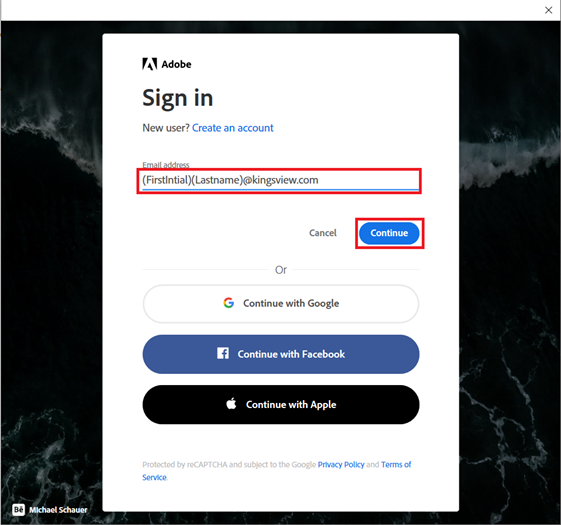
When you first open Adobe Acrobat DC it will ask you to log in. Please enter your First Initial followed by your Last name than “@kingsview.com”
Example: (First Initial)(Last Name)@Kingsview.com
Step 2.
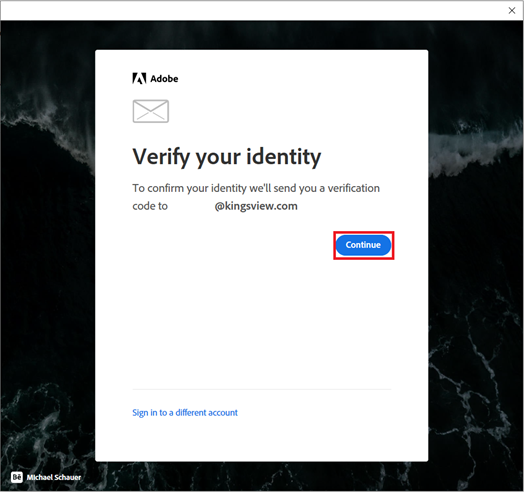
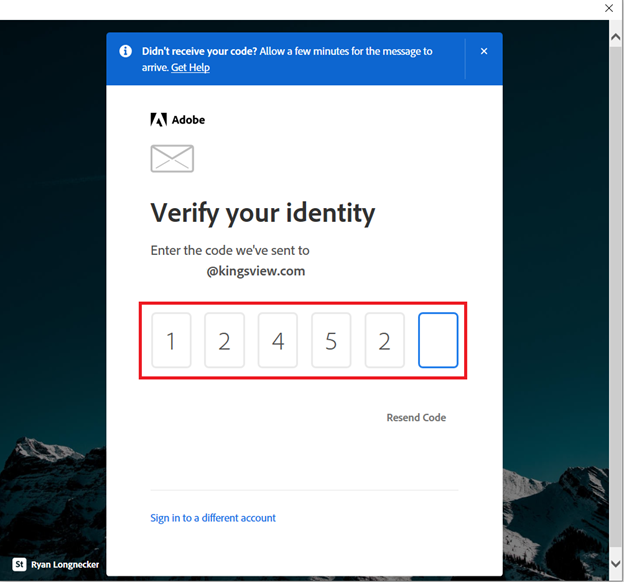
On the next screen, you will be asked to verify your Adobe Account. This will send you a code to your email.
Step 3.
The next step is to open your Outlook email. To do this please locate your Outlook Icon that is shown in the picture and double click on it. This will open your email.
Step 4.
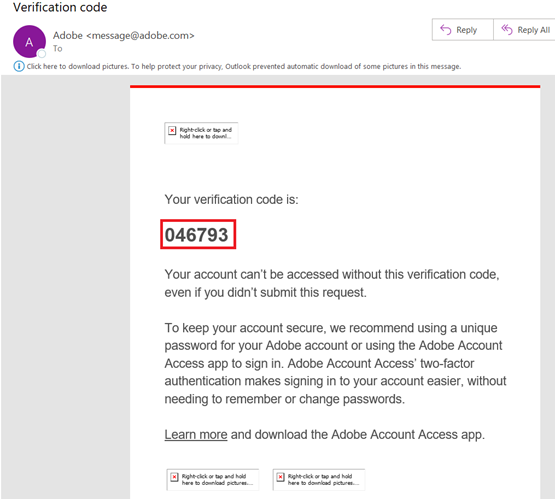
Once your email is open you will receive a verification code in an email from Adobe.
Step 5.
Once you have received the code please enter it into the next page.
Step 6.
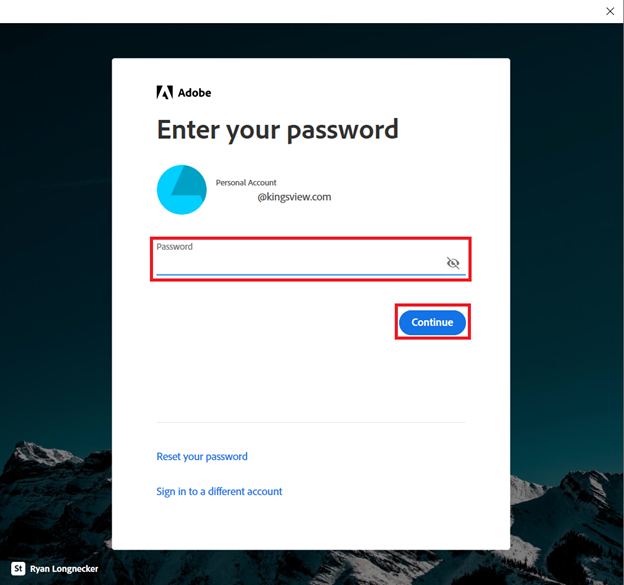
- Once you have verified your account you will be required to enter your password. If you know your Adobe password, please enter it here and press Continue.
- If you are able to get logged in you are good to go. If you are unsure of your Adobe Password, please continue with the rest of this guide.
Step 7.
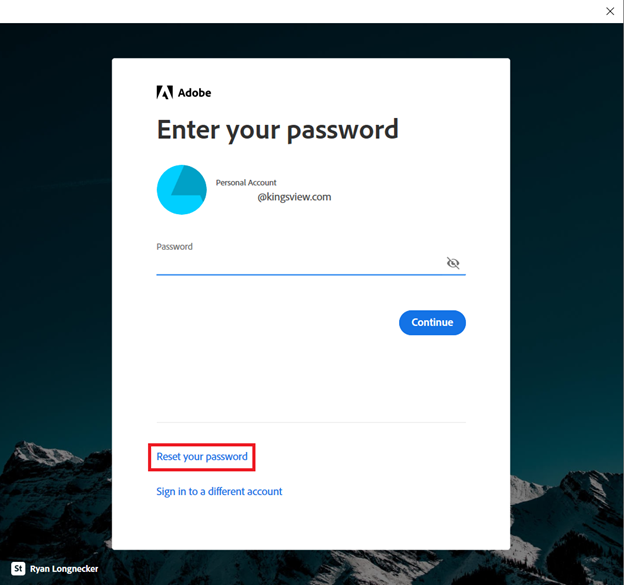
Press the “Reset your password” Button.
Step 8.
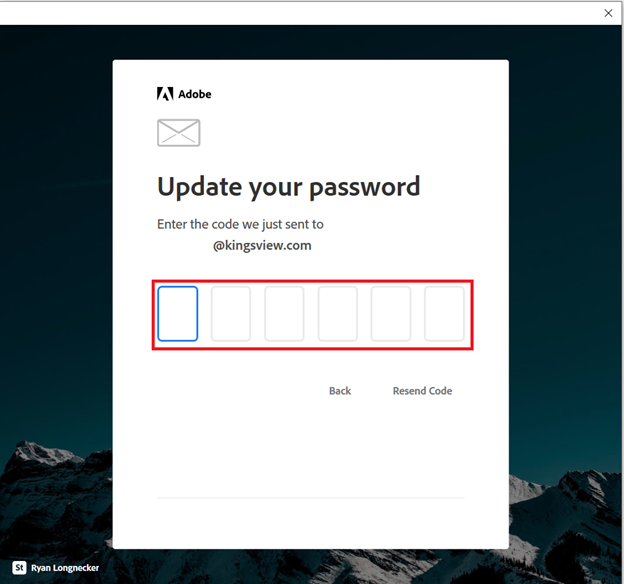
Before resetting your password, you will need to verify your account one more time.
Step 9.
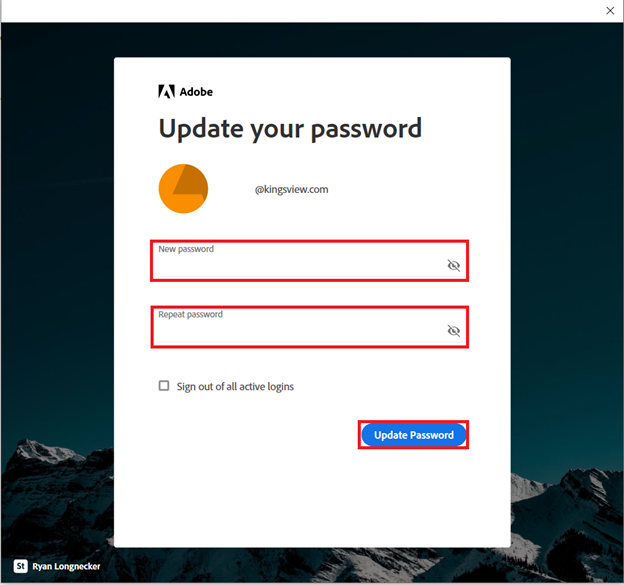
Once you have verified your account, you can now create a password.
Password requirements are 8 or more characters, Uppercase and lowercase, a number and a symbol.
Step 10.
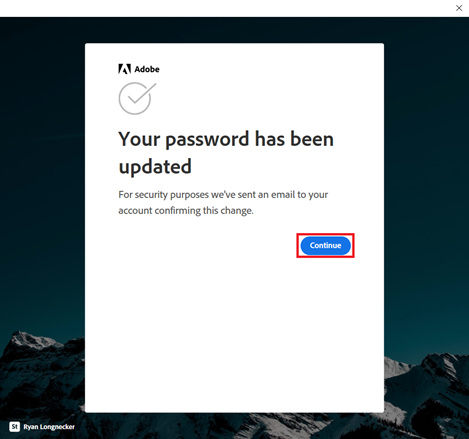
Press Continue.
Step 11
To verify that you have been logged in correctly, Click on your Profile Icon in the top right corner of Adobe.
